
English
Setting up Telegram Notifications
In addition to the usual e-mail notifications, you can also receive Client Area notifications directly in Telegram.
The setup takes just a couple of minutes - here's how to get it working.
Open your user settings
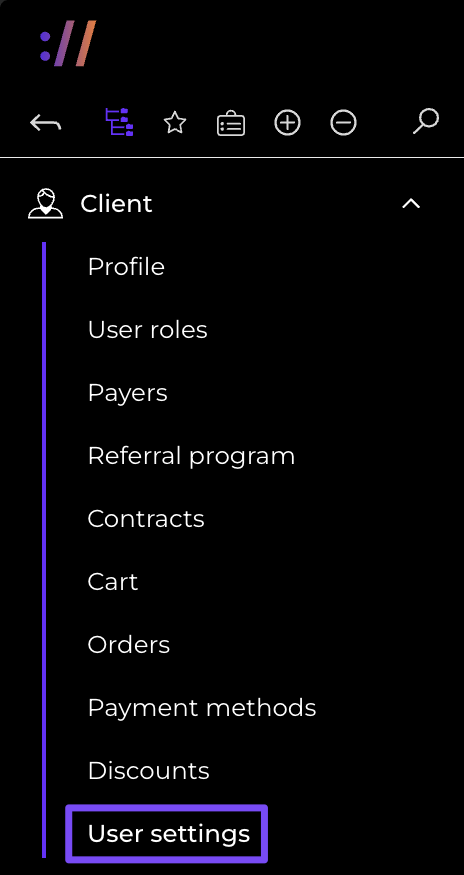
Go to "User settings" in the Client Area. You can also reach this section by clicking your login in the top-right corner of the Client Area and selecting "Settings".
Enter your Telegram username
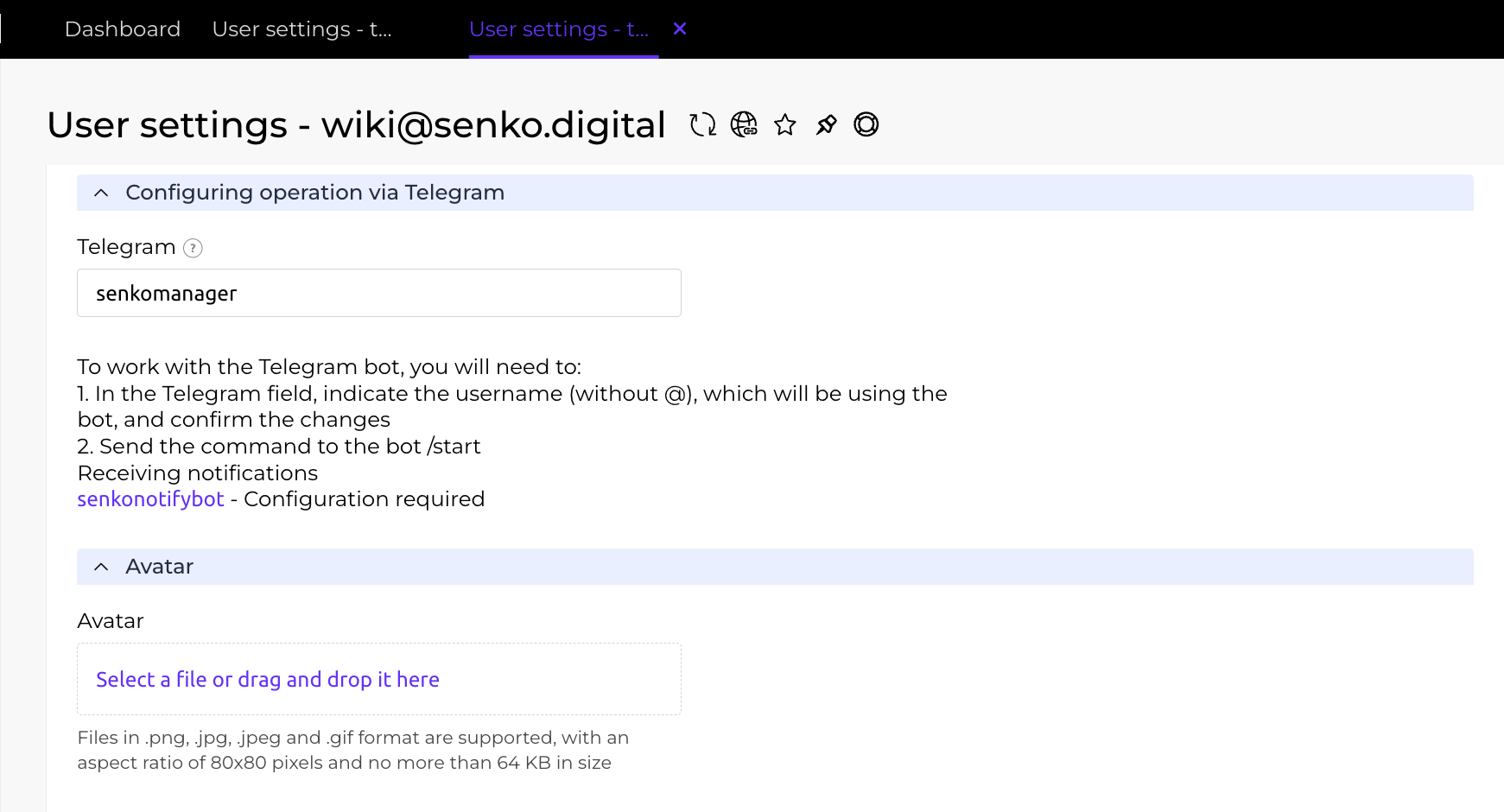
On the page, scroll down a bit until you find the "Configuring operation via Telegram" section. In some cases you may need to click the heading to expand the whole section.
In the "Telegram" field, enter your username without the @ - for example, if your username is @senkomanager (as in this example), just type senkomanager. If you don't have a username set in Telegram yet, create one in the messenger's settings first.
Important
You won't be able to complete the integration without a public Telegram username - the system simply won't be able to find your account.
Click "Ok" at the bottom of the page to save and confirm the changes.
Important
To prevent your personal data from leaking to third parties, if you ever change your Telegram username, make sure to update it in the Client Area immediately as well.
Message the bot
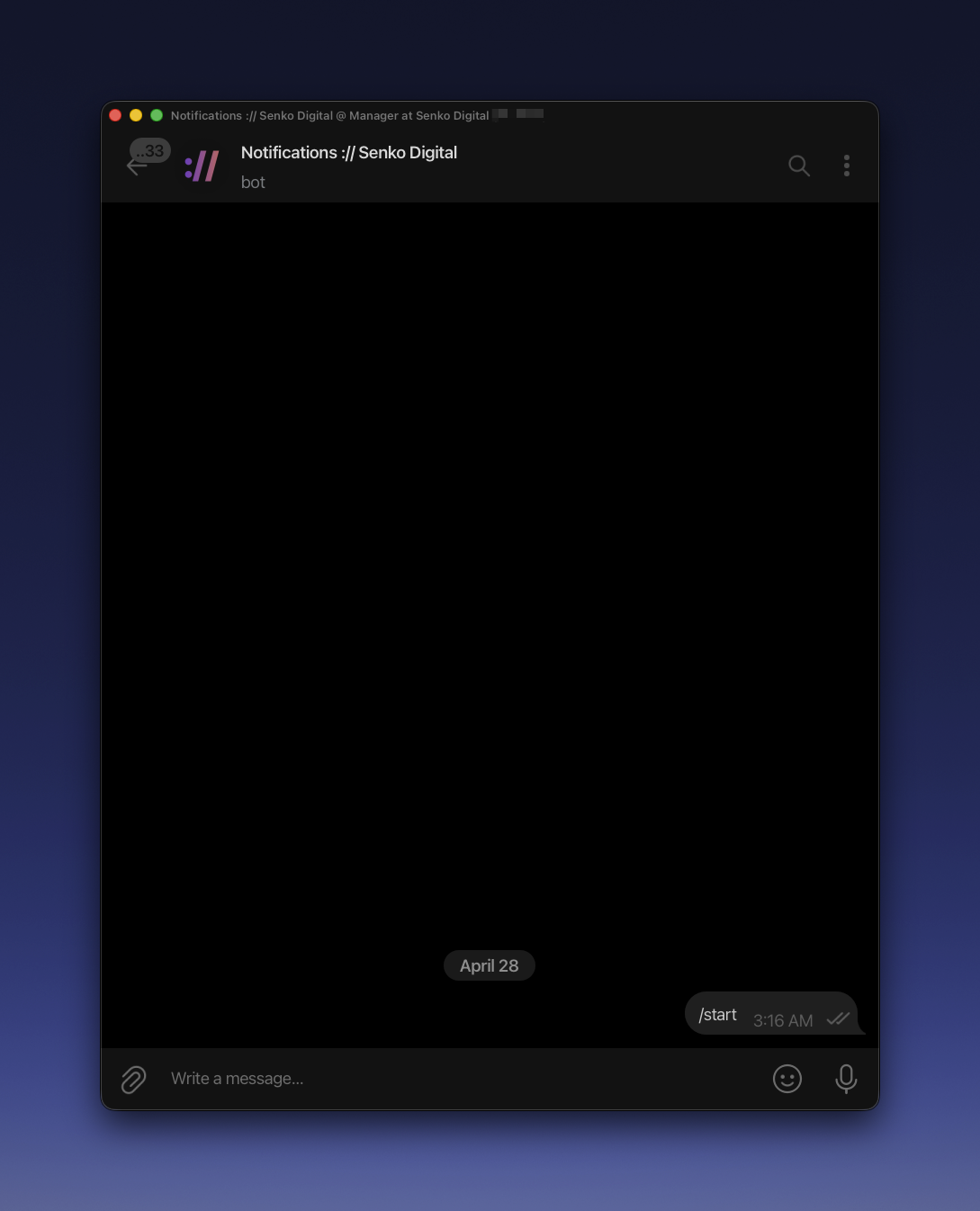
Open a chat with our Senko Digital notification bot (@senkonotifybot, id 8133928684) and click the "Start" button, or send the /start command yourself. This step is mandatory: per Telegram's rules, a bot can't message you first, so you need to write to it before any notifications can arrive.
TIP
By default, the bot doesn't reply to the /start command - that's perfectly normal, since it works one-way and is only used to deliver notifications.
Once you've messaged the bot, it will remember your Telegram account and complete the integration if everything was done correctly.
Verify the setup
Go back to the Client Area and open "User settings" once again (or simply refresh the page if you never left it). After a successful setup, the link status should change to "Confirmed".
If notifications still won't arrive
It can happen that notifications still don't come through after the setup. Most often, the cause is one of these:
- the username has an
@or a typo - enter it exactly as it appears in your Telegram profile - you recently changed your Telegram username but forgot to update it in the Client Area
- the bot is blocked - unblock it and send
/startonce again
If you've gone through the list and notifications still aren't arriving, drop us a line in support and we'll help sort it out.
That's it! From now on, support replies, payment notifications, service activations and other important events will reach you in Telegram as well.