
English
Setting Up Telegram MTProto Proxy in Docker
In this guide, we'll walk through deploying the official Telegram MTProto proxy server using Docker. MTProto proxy speaks Telegram's native protocol, making it a fast and reliable way to access Telegram in restricted networks.
What is MTProto Proxy
MTProto Proxy is Telegram's own proxy protocol, purpose-built for the Telegram messaging platform. Unlike generic SOCKS5 or HTTP proxies, MTProto is designed specifically for Telegram traffic and offers several advantages:
- Zero configuration - the official Docker image handles everything automatically
- Native protocol support - no additional client-side software required, just paste a link into Telegram
- Obfuscation - traffic is encrypted and harder to detect compared to generic proxies
- Multi-user - a single proxy server can handle tens of thousands of simultaneous connections
- Sponsor channels - you can optionally promote a channel to all proxy users
TIP
Senko Digital hosting clients have access to a fully automated MTProto proxy installation script during initial service ordering, or through the "Run Script" option in the VM control panel.
Prerequisites
- VPS server with Linux (Ubuntu 24 is used as an example)
- Root or sudo access
- Docker installed and running
- Port 443 (or your chosen port) open in the firewall
TIP
If you haven't installed Docker yet, follow the Docker installation steps from our WireGuard Easy guide - the process is the same.
Installation
Automatic Installation for Hosting Clients
Supported operating systems: Debian 11, Debian 12, Debian 13, Ubuntu 20.04, Ubuntu 22.04, Ubuntu 24.04.
During Service Order
In the order menu, select "MTProto" from the dropdown menu, complete the order and wait for service processing to finish.
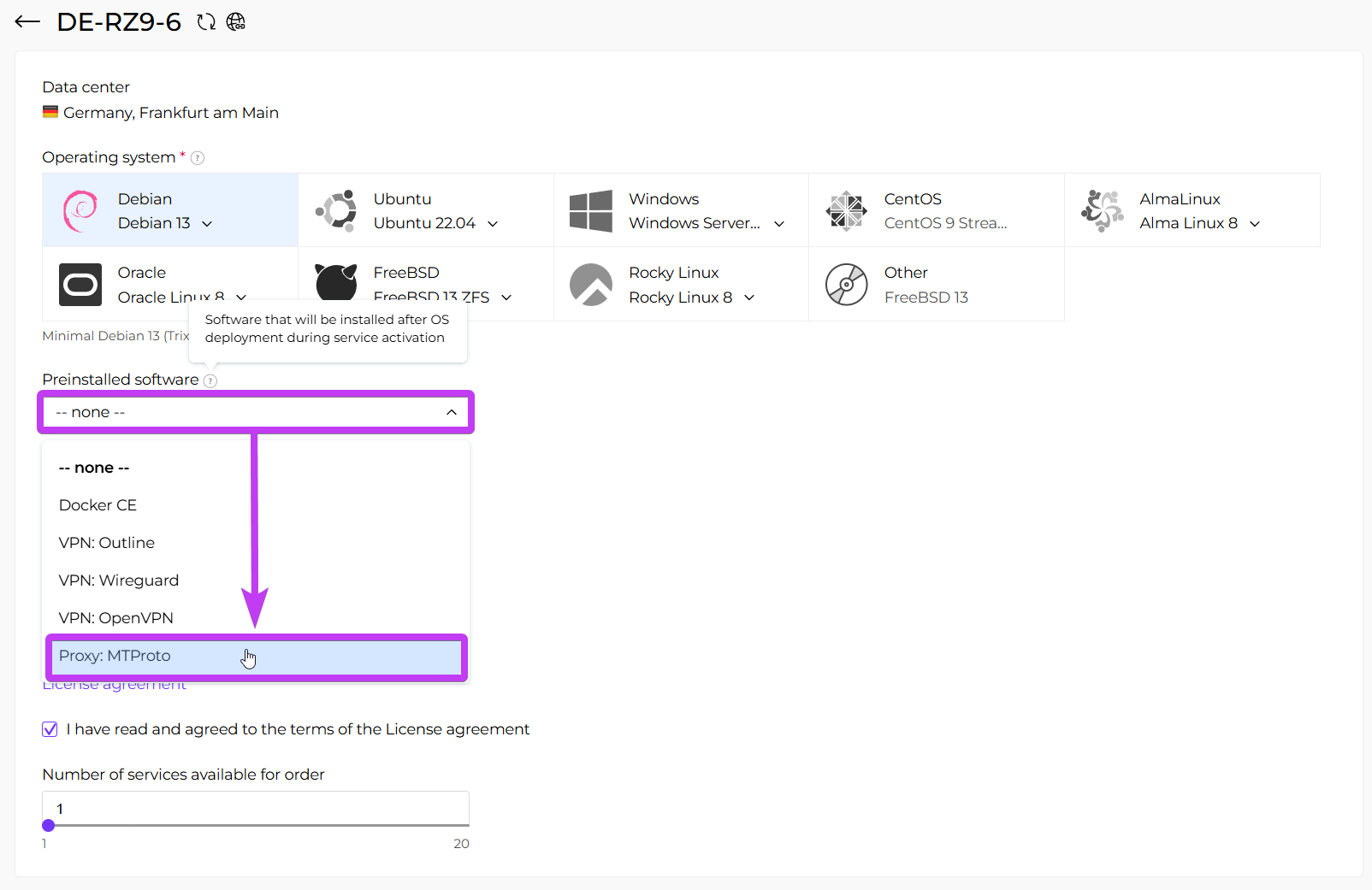
Immediately after server activation, you will receive an email containing your MTProto proxy connection links and instructions.
Through the VM Panel
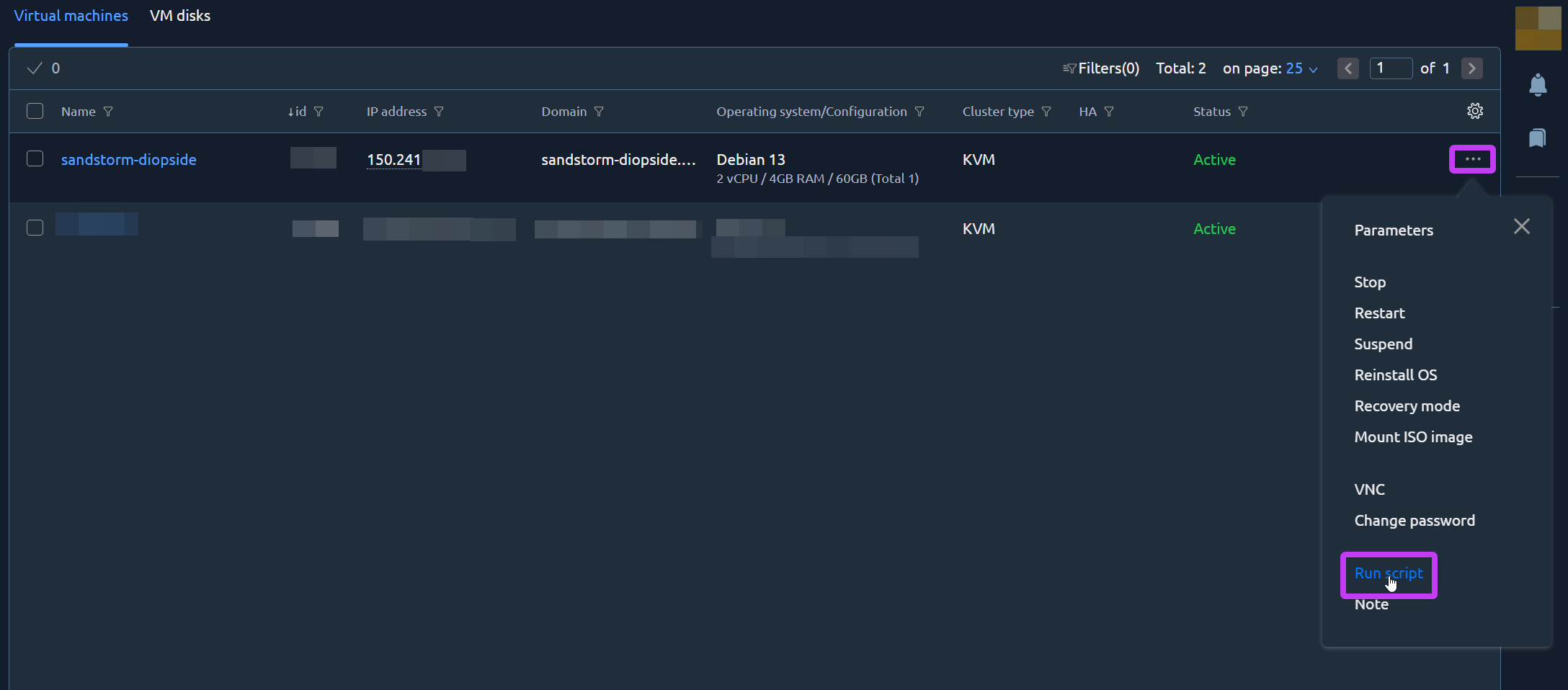
Go to the VM control panel, navigate to the management of the desired server, expand the "Menu" in the top right corner and select "Run script".
In the dialog, select the "MTProto" option and enable "Send email associated with script".
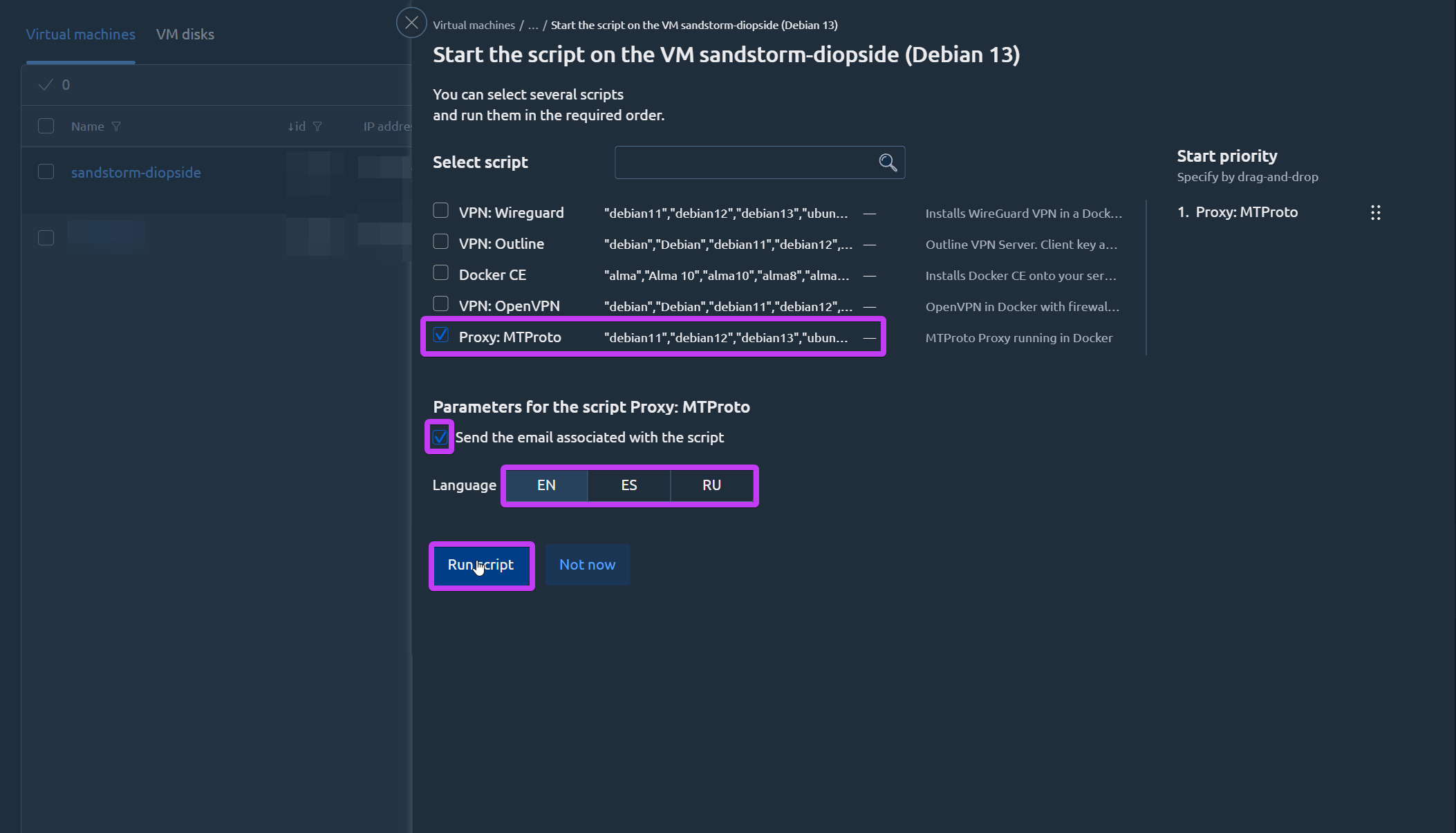
After installation is complete, you will receive an email with your MTProto proxy connection links.
What Gets Installed
The script deploys the official Telegram MTProto proxy inside Docker. The container auto-generates a secret and connection links with zero configuration required.
After installation you receive:
- connection-info.txt — contains the
tg://link,t.meweb link, secret, server IP, and port
How to Connect
- Open the
t.melink fromconnection-info.txtin any browser — Telegram will offer to enable the proxy automatically - Or: in Telegram, go to Settings → Advanced → Connection Type → Use Custom Proxy → MTProto, and enter the server IP, port, and secret manually
Firewall
The script configures a restrictive firewall — only SSH and MTProto (443/tcp) are open. All other inbound traffic is dropped.
A daily restart at 04:00 UTC automatically refreshes Telegram core IP addresses.
Server Management
bash
cd /opt/mtproto-docker && docker compose up -d    # start
cd /opt/mtproto-docker && docker compose down      # stop
cd /opt/mtproto-docker && docker compose logs -f   # logs
docker logs mtproto_proxy                          # view connection links
Manual Installation
Installing Docker (Quick Reference)
If Docker is not installed yet, the easiest way is to use the official convenience script:
bash
curl -sSL https://get.docker.com/ | CHANNEL=stable bashThis will automatically detect your Linux distribution and install the latest stable version of Docker.
Deploying the MTProto Proxy
Basic Deployment
The simplest way to launch the proxy with a single command:
bash
docker run -d \
  -p 443:443 \
  --name=mtproto-proxy \
  --restart=always \
  -v proxy-config:/data \
  telegrammessenger/proxy:latest
This will:
- Run the container in detached mode (
-d) - Map port 443 on the host to port 443 in the container
- Name the container
mtproto-proxyfor easy management - Automatically restart the container if it stops or the server reboots
- Persist the configuration (including the secret) in a Docker volume
Getting Your Connection Links
After starting the container, check the logs to get the proxy connection links:
bash
docker logs mtproto-proxyYou'll see output similar to this:
[+] No secret passed. Will generate 1 random ones.
[+] Saving generated secret to /data/secret.
[*] Final configuration:
[*]   Secret 1: 00baadf00d15abad1deaa515baadcafe
[*]   tg:// link for secret 1 auto configuration: tg://proxy?server=YOUR_IP&port=443&secret=00baadf00d15abad1deaa515baadcafe
[*]   t.me link for secret 1: https://t.me/proxy?server=YOUR_IP&port=443&secret=00baadf00d15abad1deaa515baadcafe
[*]   Tag: no tag
[*]   External IP: YOUR_IP
Copy either the tg:// or t.me link and paste it into Telegram on any device - the proxy will be configured automatically.
WARNING
Make sure the IP address in the link matches your server's public IP. If you run the proxy behind NAT, you may need to adjust the links manually.
Custom Configuration
Setting a Custom Secret
If you want to use your own secret (useful when deploying multiple proxies with load balancing), pass it as an environment variable. The secret must be exactly 16 bytes in lowercase hexadecimal (32 characters).
You can generate a random secret with:
bash
openssl rand -hex 16Then pass it to the container:
bash
docker run -d \
  -p 443:443 \
  --name=mtproto-proxy \
  --restart=always \
  -v proxy-config:/data \
  -e SECRET=00baadf00d15abad1deaa515baadcafe \
  telegrammessenger/proxy:latest
Multiple Secrets
The proxy supports up to 16 different secrets. You can either specify them explicitly as comma-separated values, or let the container generate a specific number of secrets:
bash
# Specify multiple secrets explicitly
docker run -d \
  -p 443:443 \
  --name=mtproto-proxy \
  --restart=always \
  -v proxy-config:/data \
  -e SECRET=935ddceb2f6bbbb78363b224099f75c8,2084c7e58d8213296a3206da70356c81 \
  telegrammessenger/proxy:latest
bash
# Auto-generate 4 secrets
docker run -d \
  -p 443:443 \
  --name=mtproto-proxy \
  --restart=always \
  -v proxy-config:/data \
  -e SECRET_COUNT=4 \
  telegrammessenger/proxy:latest
Using a Custom Port
You can forward any host port to the container's internal port 443. For example, to use port 8443:
bash
docker run -d \
  -p 8443:443 \
  --name=mtproto-proxy \
  --restart=always \
  -v proxy-config:/data \
  telegrammessenger/proxy:latest
WARNING
If you change the external port, you must manually update the port number in the tg:// and t.me links from the container logs.
Adding a Sponsor Channel Tag
You can register your proxy with Telegram's @MTProxybot to receive a promotion tag. This tag allows you to display a sponsored channel to all users connected through your proxy:
bash
docker run -d \
  -p 443:443 \
  --name=mtproto-proxy \
  --restart=always \
  -v proxy-config:/data \
  -e TAG=3f40462915a3e6026a4d790127b95ded \
  telegrammessenger/proxy:latest
TIP
The tag is not persistent - you must pass it as an environment variable every time the container is recreated. The secret, on the other hand, is saved in the volume and persists across restarts.
Adjusting Worker Count
A single worker process can handle tens of thousands of connections. By default, the proxy runs 2 workers with a limit of 60,000 connections per core. If you expect high traffic, increase the worker count:
bash
docker run -d \
  -p 443:443 \
  --name=mtproto-proxy \
  --restart=always \
  -v proxy-config:/data \
  -e WORKERS=16 \
  telegrammessenger/proxy:latest
Opening the Firewall Port
If you're using UFW (Uncomplicated Firewall), allow traffic on the proxy port:
bash
# For default port 443
sudo ufw allow 443/tcp

# For a custom port (e.g. 8443)
sudo ufw allow 8443/tcp
Registering Your Proxy with Telegram
To gain access to usage statistics and optional monetization:
- Open Telegram and search for @MTProxybot
- Send the
/newproxycommand - Provide your server's IP address and port
- Provide your proxy secret
- The bot will give you a tag - use it with the
TAGenvironment variable as shown above
Connecting Clients
On Mobile (Android / iOS)
- Open the
tg://ort.melink from the container logs in your browser - Telegram will open and offer to enable the proxy
- Tap Connect
On Desktop (Telegram Desktop)
- Open the
tg://ort.melink - Telegram Desktop will prompt you to add the proxy
- Click Enable
Manual Configuration
If you prefer to configure the proxy manually:
- Go to Settings > Advanced Settings > Connection Type > Use Custom Proxy
- Select MTProto
- Enter your server IP, port, and secret
- Tap Save and then Connect
Managing the Container
Common Commands
bash
# View container status
docker ps -a | grep mtproto-proxy

# View logs
docker logs mtproto-proxy

# Follow logs in real-time
docker logs -f mtproto-proxy

# Stop the proxy
docker stop mtproto-proxy

# Start the proxy
docker start mtproto-proxy

# Restart the proxy
docker restart mtproto-proxy

# Remove the container (data is preserved in the volume)
docker rm -f mtproto-proxy
Updating the Proxy
To update to the latest version:
bash
# Pull the latest image
docker pull telegrammessenger/proxy:latest

# Remove the old container
docker rm -f mtproto-proxy

# Start a new container (the secret is preserved in the volume)
docker run -d \
  -p 443:443 \
  --name=mtproto-proxy \
  --restart=always \
  -v proxy-config:/data \
  telegrammessenger/proxy:latest
Monitoring
The proxy exposes internal statistics at http://localhost:2398/stats inside the container. To view them:
bash
docker exec mtproto-proxy curl http://localhost:2398/statsKey metrics to watch:
| Metric | Description |
|---|---|
ready_targets | Number of Telegram core servers the proxy will try to connect to |
active_targets | Number of Telegram core servers actually connected (should equal ready_targets) |
total_special_connections | Number of currently connected clients |
total_max_special_connections | Maximum allowed connections (60,000 x worker count) |
Automatic Daily Restart
The proxy fetches Telegram core IP addresses at startup. These addresses can change, so it's recommended to restart the container once a day to keep the list up to date:
bash
# Open the crontab editor
crontab -e
Add the following line to restart the proxy every day at 4:00 AM:
0 4 * * * docker restart mtproto-proxyTroubleshooting
Clients Stuck on "Connecting"
This means clients cannot reach your proxy server. Check the following:
- Firewall: Make sure the proxy port (443 or your custom port) is openbash
sudo ufw status - Docker port mapping: Verify the container is running and the port is mapped correctlybash
docker ps - Network restrictions: Some networks may block port 443 for non-HTTPS traffic. Try using a different port
Clients Stuck on "Updating"
This means the proxy cannot reach Telegram's core servers. Check:
- Outbound firewall: Ensure your server can make outbound connectionsbash
curl -I https://telegram.org - System time: The proxy requires the system clock to be within 5 seconds of UTC. Install and enable time synchronization:bash
sudo apt install systemd-timesyncd sudo timedatectl set-ntp true timedatectl status - Restart the container: The Telegram core IP addresses may have changed since the container startedbash
docker restart mtproto-proxy
Container Exits Immediately
Check the container logs for errors:
bash
docker logs mtproto-proxyCommon causes:
- Port 443 is already in use by another service (e.g. Nginx, Apache)
- The Docker volume is corrupted - try removing it and starting fresh:bash
docker rm -f mtproto-proxy
docker volume rm proxy-config
# Then re-run the docker run command
Conclusion
Setting up an MTProto proxy is straightforward with Docker - a single command gets you a fully functional proxy server. Remember to restart the container daily and keep your system updated for the best reliability.
For additional help, contact our support team.