English
 Installing Plugins
Installing PluginsA quick guide to installing plugins on your Minecraft server.
TIP
Plugins require compatible server software (core) to function, such as PaperMC, CraftBukkit, Mohist, or Fabric. For instructions on installing these server types, see our custom server software guide.
Each plugin is designed for a particular Minecraft core. For instance, Paper plugins will not work with CraftBukkit, and the reverse is also true. Always check that any plugin you download is compatible with your server’s core and game version.
To ensure stability and avoid broken or malicious plugins, download plugins from official or trusted sources:
Downloading Plugins
In this tutorial, we'll use Modrinth as an example because of its simplicity and the wide range of plugins available.
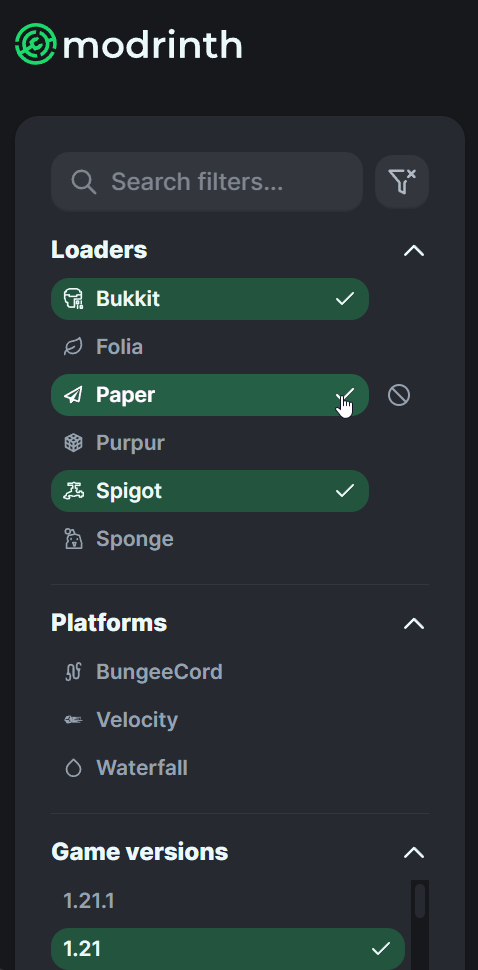
Filtering by server type (platform/core) and game version is highly recommended to ensure compatibility.
Once you've found your desired plugin, open its page and click the "Download" button.

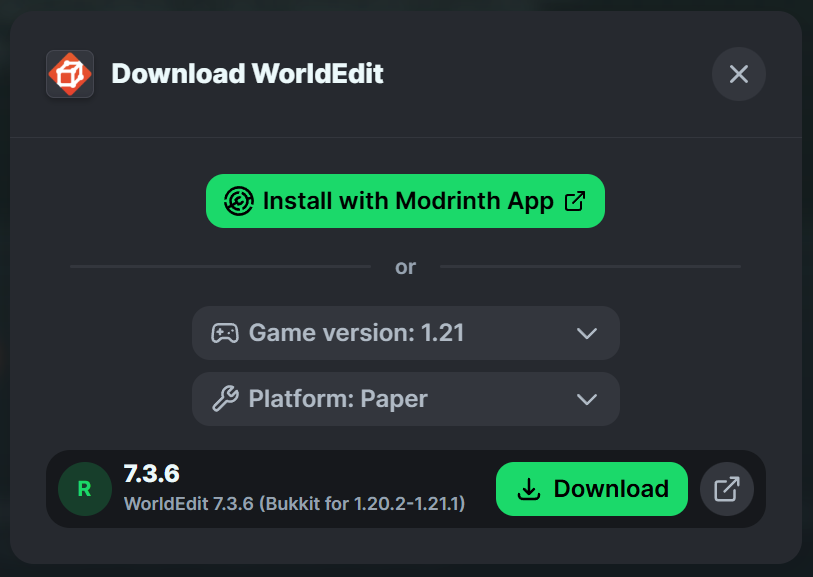
A popup will prompt you to pick the version and core (platform). Choose the ones that match your server setup.
Installing the Plugin on the Server
After downloading the plugin, access your server's file manager and open the plugins directory. Upload the downloaded .jar file here (for example, worldedit-bukkit-7.3.6.jar).

Testing That the Plugin Works
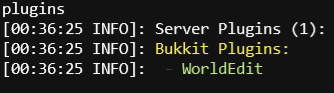
Restart your Minecraft server to load the new plugin. Once the server is running, type the plugins command in the server console. If you see your newly added plugin listed, the installation was successful!