
English
File Manager
Quick guide to using the file manager in the game control panel.
Page Description
With the file manager, you can manage your game server files: upload and download files, create new and unpack old archives, edit code with highlighting without third-party editors, and much more.
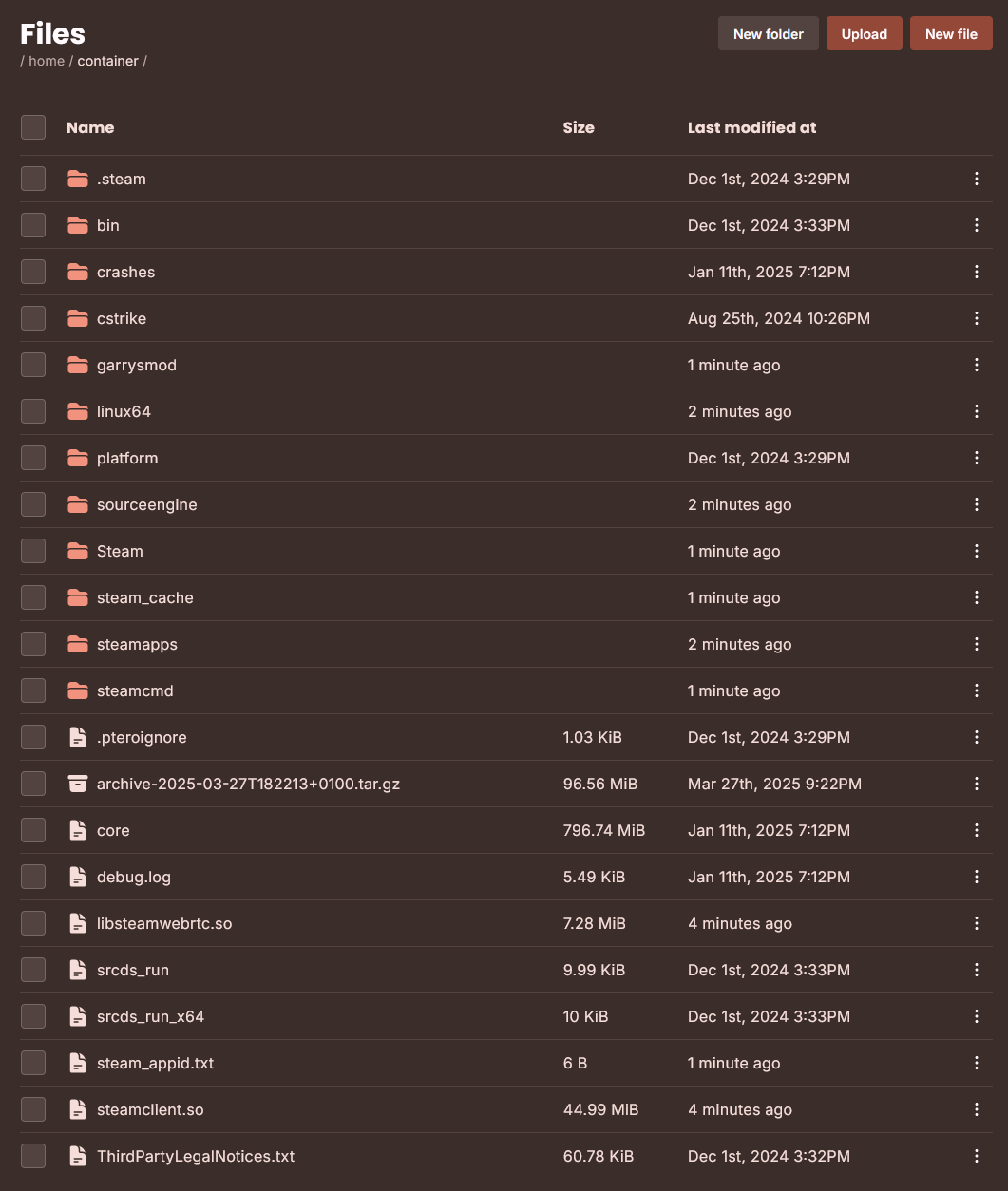
Creating a New File
In the file manager window, click on the "new file" button, paste the content you need, and save the file using the button below.
Deleting a File caution
Select the file you need, right-click on it, and select the "delete" option.
Creating a New Folder
In the file manager window, click on the "new folder" button, enter the name, and click on "create".
Packing Files
Select the folders and files you want to pack, then right-click on any of the files and select the "archive" option.
TIP
A new archive will be created in tar.gz format for smaller size and more convenient use on any OS.
Unpacking Files
Select the archive you want to unpack, right-click on it, and select the "unarchive" option.
TIP
Files will be unpacked in the same folder where you are located.